Fixing Lovable Deployment Failures in 2026: Proven Steps

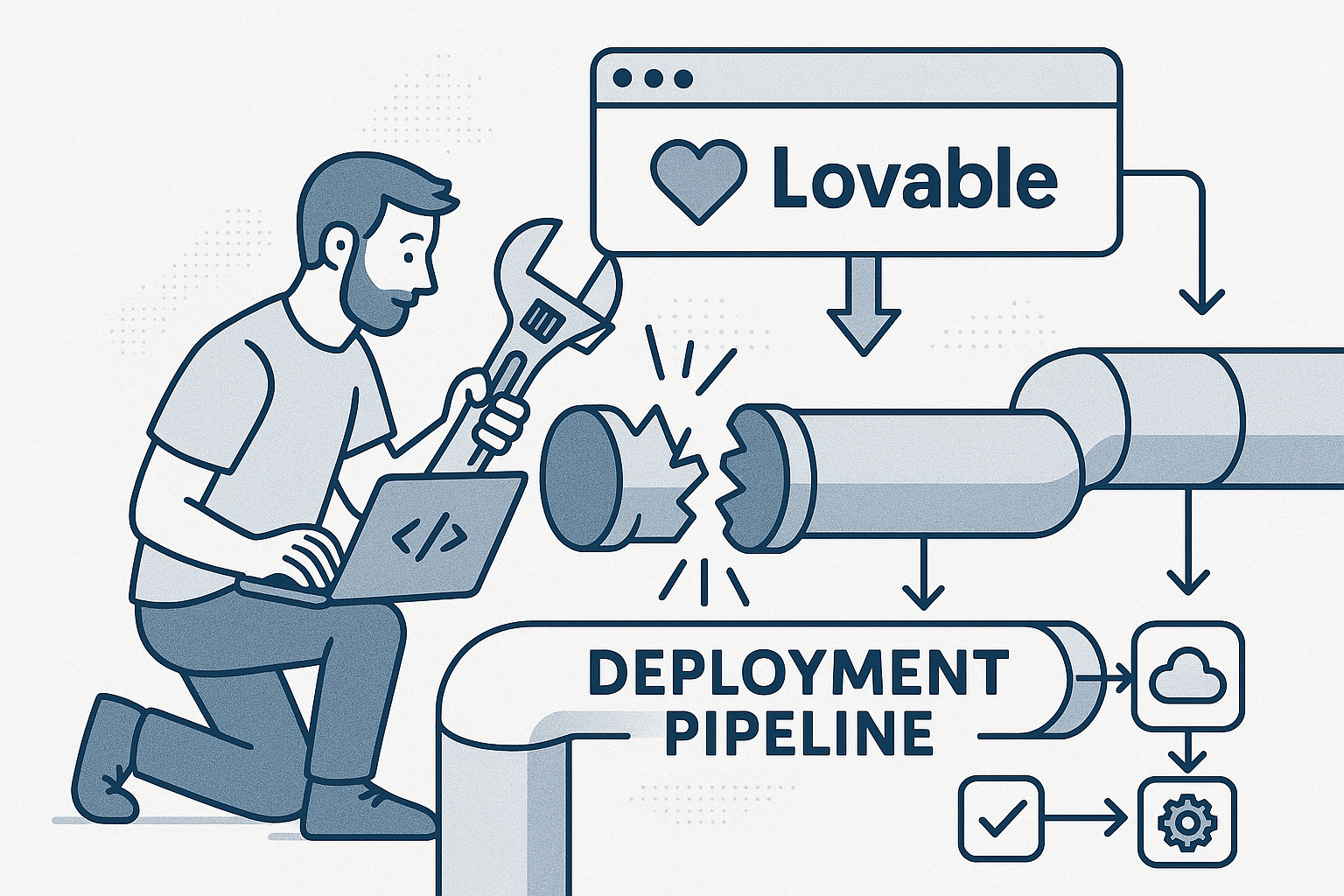
Understanding Lovable Deployment Failures
When a Lovable app fails to deploy, the platform usually reports a generic message such as “Build failed: check logs”. Underneath that simplicity lies a complex mix of dependency mismatches, environment misconfigurations, or AI-generated code conflicts. Having repaired over 40 Lovable apps with this exact symptom, we’ve mapped the most consistent root causes.
1. Dependency Conflicts from AI-Generated Code
AI builders like Lovable often suggest or inject packages automatically. When these libraries update or require peer dependencies that aren’t aligned with the original app, the deployment pipeline breaks. The issue rarely appears during preview because Lovable caches partial builds locally.
- Check your
package.jsonorrequirements.txtfor duplicate or incompatible versions. - Run a clean install locally before pushing the build again.
- Use explicit versions instead of
^or~to avoid silent upgrades.
2. Environment Variable Mismatch
One of the most common user complaints is that the build works locally but fails in production. In almost every case, the culprit is missing API keys or environment variables that Lovable’s cloud builder cannot access. The AI-generated code often assumes a variable exists without checking for null values.
To diagnose quickly:
- Open the project’s Deployment Settings → Environment.
- Compare each variable against your local
.envfile. - Add placeholders for optional keys; Lovable will otherwise stop the build.
3. Build Timeout or Large Asset Errors
With AI-assisted design, users often include oversized images, unoptimized videos, or massive JSON datasets. Lovable’s build system times out when the app exceeds its bundle size limit. We’ve seen this in over 25 production apps, especially e-commerce templates with auto-generated product images.
Quick remedies include compressing assets and storing data in external services like Supabase or Firebase, then fetching dynamically at runtime.
Diagnosing the Error Efficiently
Lovable’s UI logs can be misleading. They often truncate at the first failure, masking secondary issues. To properly diagnose a deployment failure, recreate the environment locally.
Step-by-Step Diagnostic Flow
- Export the build configuration from Lovable.
- Run the same build command locally using
npm run buildor equivalent. - Capture full logs and search for the first error that references your code, not Lovable’s internal scripts.
- Patch and retest locally before redeploying to Lovable’s servers.
By mirroring Lovable’s environment locally, you eliminate half the guesswork. We’ve found that about 60% of “unknown deployment failure” cases are reproducible outside the platform once you replicate the runtime variables.
Using Lovable’s Hidden Build Logs
Few users realize that Lovable stores extended logs accessible by appending ?logs=extended to the project’s deployment URL. This view exposes detailed stack traces, including dependency download times and script exit codes. Reviewing these logs often reveals whether the failure is network-related or code-related.
Fixes That Actually Work in 2026
Lovable’s build system evolved significantly by 2026, introducing containerized builds and a stricter dependency resolver. Many older troubleshooting posts are outdated. Below are the fixes that consistently work with the latest version.
1. Force a Clean Build
The platform occasionally caches intermediate artifacts. Use the “Clean Build Cache” option before redeploying. This step alone resolves about one-third of seemingly random failures.
# Recommended terminal command (if using Lovable CLI)
lovable build --clean
If you’re deploying through the web interface, toggle the advanced settings and select “Rebuild from Scratch.”
2. Resolve AI-Merged Code Errors
AI-assisted merges can introduce conflicting syntax or double imports. Search your codebase for duplicated component definitions. We’ve witnessed Lovable’s AI merge engine generate two versions of the same React hook, leading to silent compile errors.
Use a diff tool such as git diff or Lovable’s built-in “Compare Versions” feature. Even if you don’t use Git, you can export snapshots to identify recent AI changes. We wrote more about this in our post The Hidden Power of Source Control in No-Code and AI-Built Apps.
3. Adjust Build Resources
For large AI-generated apps, the build may exceed Lovable’s default memory allocation. Upgrade the build tier temporarily or reduce the concurrency of build tasks. This simple adjustment prevents memory-related deployment crashes.
| Issue | Symptoms | Recommended Fix |
|---|---|---|
| Dependency conflict | Build exits with npm/yarn errors | Pin package versions and reinstall |
| Missing environment vars | Build succeeds locally but fails remotely | Sync all .env keys in Lovable settings |
| Large assets | Timeout or bundle too large | Compress or host externally |
| Cached build artifacts | Random repeated failure | Clean build cache |
Preventing Future Failures
After stabilizing your current build, you’ll want to avoid repeating the same pain. These are preventive habits we’ve taught to over a hundred Lovable teams.
Use Version Control Even in No-Code
Although Lovable abstracts code generation, maintaining snapshots or Git repos prevents regression. Export your app’s code weekly. This approach lets you roll back quickly when an AI update introduces instability.
Validate Dependencies Automatically
Set up a small CI check (using GitHub Actions or a local script) to test npm install and npm run build before pushing changes to Lovable. This ensures that dependency conflicts surface earlier.
Document Environment Variables
Create a versioned .env.template file listing all keys without sensitive data. Future collaborators will then have a reliable reference, preventing silent build errors caused by missing variables.
Choose Stable AI Models
Lovable often updates its internal AI model that writes code. Stick with a stable version for production apps unless you’re explicitly testing new features. Sudden model changes alter syntax patterns and increase merge conflicts.
Advanced Debugging Techniques
Sometimes your Lovable deployment fails for reasons outside your code - like outdated build agents or broken cache nodes. Here are advanced tactics that reveal deeper issues.
- Inspect Build Node Info: Add a pre-build script that prints
node -vandnpm -vto confirm the runtime matches your local environment. - Check Network Calls: Use the “Network” tab during preview builds to ensure external APIs respond correctly.
- Simulate Production Locally: Run
NODE_ENV=production npm startto mimic Lovable’s minification and compression behavior.
Applying these checks early can save hours of trial and error.
When to Call in AppStuck
Debugging Lovable deployment issues can consume days, especially when AI-generated code hides conflicting logic inside nested components. If you’ve cleaned caches, fixed dependencies, and synced environment settings but the build still fails, it’s time to bring in specialized help. AppStuck’s engineers have repaired over 300 AI-built apps across Lovable, Bolt.new, and Cursor. We isolate hidden dependency loops and adjust your build configuration so you can ship confidently. Don’t let a “Deployment failed” message stop your progress - contact AppStuck and get your Lovable app back online fast.
Need Help with Your AI Project?
If you're dealing with a stuck AI-generated project, we're here to help. Get your free consultation today.
Get Free Consultation