Fixing Lovable Build Failures in 2026

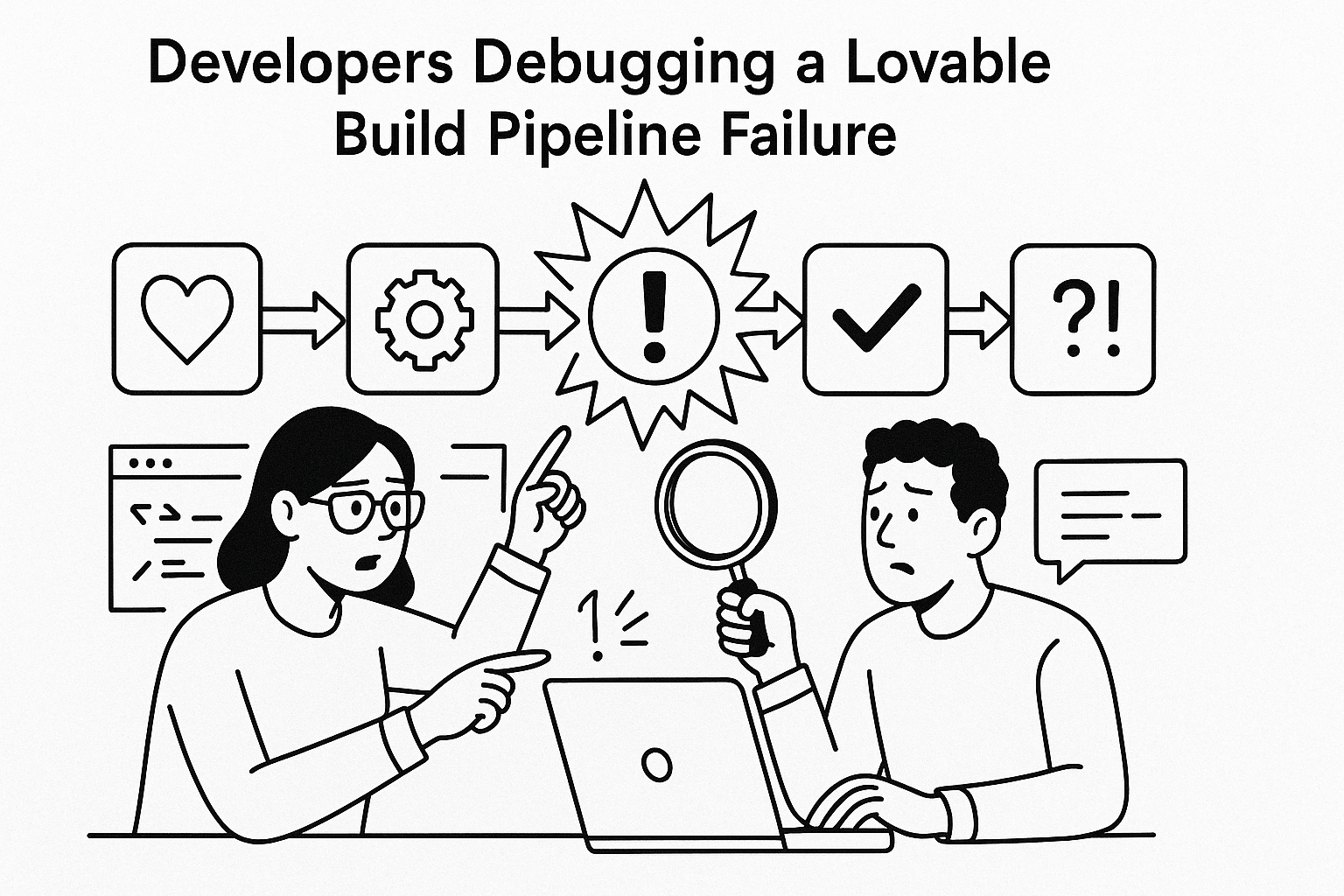
Why Lovable Builds Fail in 2026
Lovable’s build pipeline changed significantly in 2026. The platform now relies on containerized runners and stricter dependency versioning. That means small mismatches in your package.json, Python requirements, or environment variables can break the build, even if the app ran fine in preview. We've seen over 40 projects fail right after Lovable pushed an internal runner update.
Common triggers include outdated AI-generated dependencies, corrupted cache layers, or missing secrets in the environment configuration. When Lovable’s AI builder generates an app, it often pins versions inconsistently across files. For example, the front-end may use React 18 while the build container expects React 17. This hidden mismatch causes the build to fail silently or produce vague log errors.
- Dependency mismatch: Versions locked incorrectly or conflicting modules.
- Missing environment variables: API keys or backend URLs not injected during build.
- Corrupted build cache: Old Docker layers reused with invalid checksum.
- Outdated AI scaffolding: Lovable’s generated code referencing deprecated modules.
Understanding which of these applies to your app is the first step to recovery.
Diagnosing Build Failures Step by Step
When a Lovable build fails, the console log is your most valuable artifact. Resist the urge to rerun the build repeatedly without reading the logs. Instead, copy the last 30 lines of the build output. They usually contain the real error message, even if Lovable’s UI only shows 'Build failed'.
Step 1: Inspect the Logs
Open the build log and search for keywords like 'dependency', 'version', 'missing', or 'exit code'. If you see 'module not found', note the exact module name. This tells you whether the issue is dependency-related or environment-related.
Step 2: Check Environment Variables
Go to Project Settings → Environment. Confirm that every API key, URL, and secret listed in your code is defined here. Lovable does not automatically import secrets from local .env files. Missing environment variables cause silent build crashes, especially in AI-generated projects that assume local variables exist.
Step 3: Clear the Cache
Lovable stores cached layers between builds for speed. When dependencies change, this cache can corrupt. Force a clean build by toggling 'Rebuild from scratch' in the build panel. This clears stale layers and rebuilds the container cleanly.
AI Debugging Prompt: "Analyze this Lovable build log and list the top 3 likely causes of failure. Suggest exact file or command fixes I can apply to restore the build."
Once you identify the cause, apply targeted fixes rather than random edits. If this process is eating your week, AppStuck can take it from here.
Fixing Dependency Conflicts and Version Errors
Dependency conflicts are the number one reason Lovable builds fail. The AI scaffolder often selects inconsistent versions of the same library across different files. For example, you might have React 18 in package.json but a plugin that only supports React 17. The build system then throws a vague 'peer dependency mismatch' error.
To fix this, run a dependency audit locally if possible. Export the Lovable project and open the terminal:
npm install --legacy-peer-deps
npm audit fix
npm run build
This command installs dependencies without enforcing strict peer versions, then fixes known vulnerabilities. If the build works locally but fails on Lovable, the issue is likely in the build container's dependency cache or runner version.
| Symptom | Likely Cause | Action |
|---|---|---|
| Build fails after dependency update | Version mismatch | Lock versions explicitly in package.json |
| Module not found | Dependency not installed | Reinstall dependencies, clear cache |
| Build succeeds locally but not online | Runner mismatch | Force rebuild with clean cache |
Consistent version locking prevents the majority of Lovable build errors. Always use exact version numbers rather than carets (^) or tildes (~).
Handling Environment and Secret Variable Issues
Environment variables are often overlooked in AI-generated projects. Lovable builds apps in isolated containers, so local environment configurations do not apply automatically. When a build references process.env.API_URL but no API_URL is defined in the project settings, the build can fail or produce undefined behavior.
To fix this, open the Environment tab in Lovable and add all required variables. Use the same casing and names as in your code. If your app uses backend services, confirm that their endpoints are publicly reachable. Private endpoints or misconfigured CORS can also cause build-time failures during backend checks.
Checklist for Environment Configuration
- Match variable names exactly as used in code.
- Ensure all required keys are set in Lovable’s dashboard.
- Use dummy values for development builds if necessary.
- Verify that URLs include correct HTTP/HTTPS prefixes.
- Rebuild after any variable change to apply updates.
We’ve seen dozens of apps that failed simply because one variable name differed by a single character. Treat environment configuration as code—it must be versioned and documented.
Rebuilding Corrupted Cache and Runner Issues
Lovable caches build layers to speed up subsequent builds. While efficient, this system sometimes stores outdated dependencies or intermediate compilation artifacts. When cache corruption occurs, the build fails repeatedly until the cache is reset.
Signs of cache corruption include identical errors across multiple rebuilds even after fixing code issues. To fix this, toggle the clean rebuild option and re-run the build. If that fails, try exporting the project and building locally to verify correctness.
Runner mismatches are another common issue. Lovable periodically updates its build containers, which can introduce new versions of Node, Python, or other runtimes. AI-generated code that assumes a specific runtime version may break silently after such updates. Always specify the runtime version explicitly in configuration files:
// package.json
"engines": {
  "node": "18.17.0"
}
This tells Lovable’s runner which Node version to use. For Python projects, define requirements.txt and runtime.txt files to lock versions.
If you still face recurring build issues after resetting caches and locking versions, it’s time to escalate. Persistent build instability often indicates deeper AI scaffolding errors that require manual code review.
Preventing Future Lovable Build Failures
Once your build is fixed, prevention becomes the next goal. The most successful teams follow structured version control and test each dependency update in isolation. Avoid bulk upgrades. Use continuous integration (CI) pipelines outside Lovable for pre-build validation.
Best Practices for Stable Builds
- Commit a working lockfile and never delete it.
- Document all environment variables with their expected values.
- Use semantic versioning and avoid wildcard operators.
- Run local builds before triggering Lovable builds.
- Schedule dependency updates monthly, not ad hoc.
Proactive maintenance saves hours of firefighting. If you’re curious about API integration errors, see our related post Fixing FlutterFlow API Integration Errors in 2026 for deeper insights on handling cross-platform build dependencies.
When to Call in AppStuck
DIY debugging works until you hit the same failure three times with no progress. When your Lovable project blocks production deployment, manual trial and error becomes costly. That’s when our team steps in. AppStuck engineers specialize in AI-generated apps with tangled dependency graphs, misconfigured build environments, and corrupted project structures. We’ve rescued hundreds of apps that Lovable’s builder couldn’t compile.
Typical signs it’s time to call for help include:
- Build fails even after a full cache clear.
- Errors shift randomly between builds.
- Dependencies reinstall successfully but still crash on compile.
- Environment variables verified but build still breaks.
When debugging starts eating your weekend, hand it off. AppStuck can take it from here and restore your Lovable build to production-ready status.
Need Help with Your AI Project?
If you're dealing with a stuck AI-generated project, we're here to help. Get your free consultation today.
Get Free Consultation