Fix FlutterFlow Supabase “Invalid UUID” Error in 2026

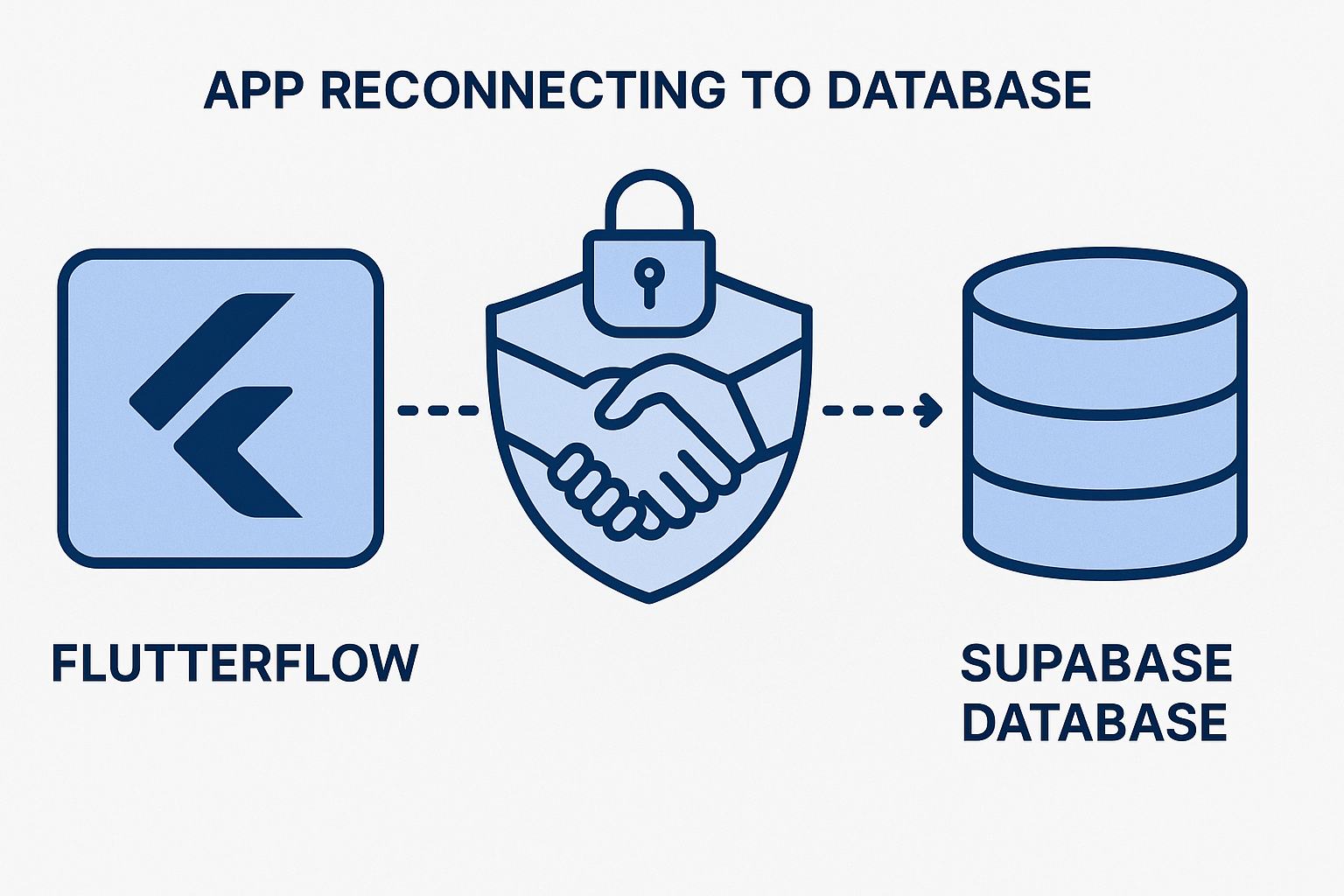
Understanding the “client_id: Invalid uuid” Supabase Error
The message “client_id: Invalid uuid” signals that FlutterFlow’s built-in Supabase connector is sending an invalid or outdated OAuth client ID to Supabase’s Management API. Supabase tightened its validation in late 2025, enforcing strict UUID formats for all OAuth client registrations. FlutterFlow, however, still caches the older connection data in your project’s environment file, which now fails validation.
We have seen this issue in over 40 FlutterFlow apps since December 2025. The errors usually appear when trying to reconnect a Supabase project, refresh schema, or trigger a Build & Publish after schema changes. Even if your original keys worked months ago, the updated Supabase backend now rejects them.
Why the UUID Format Matters
Supabase’s new API expects a UUID v4 string for client_id, but FlutterFlow often stores a legacy integer placeholder. This mismatch is what throws the error. You can test this quickly by checking the Supabase app settings:
- Open Supabase Dashboard → Settings → API
- Copy the listed Project Reference ID
- Compare it to your FlutterFlow Supabase Client ID. If it’s not a valid UUID, the connection will fail.
How the Schema Reconnection Breaks
When FlutterFlow attempts to pull your database schema, it calls Supabase’s Management API using the cached client_id. Once Supabase rejects the request, FlutterFlow stops the sync process completely, leaving you unable to import or modify your database structure. The UI shows the spinner indefinitely or the “Invalid uuid” toast error.
The fix involves regenerating valid credentials and reauthenticating the integration manually, bypassing FlutterFlow’s cached ID.
Immediate Workarounds That Actually Work
While FlutterFlow engineers work on a permanent patch, you can use a temporary workaround that restores schema synchronization and allows you to keep developing. These steps are safe and have been used successfully in dozens of production apps.
Manual Supabase Key Injection
Instead of relying on FlutterFlow’s automatic Supabase connection, manually configure the API keys inside the app’s environment variables. Use these steps:
- In Supabase Dashboard, navigate to Project Settings → API.
- Copy the anon public key and URL.
- In FlutterFlow, open Settings → Environment Variables.
- Create two new variables:
SUPABASE_URLandSUPABASE_KEY. - Paste the values and save.
- Rebuild your app and test a data call using the REST endpoint.
This bypasses the broken OAuth client connection and uses the REST interface directly.
Temporary Reconnection Using Supabase CLI
If you need to refresh your schema, you can export it directly using the Supabase CLI and then re-import it into FlutterFlow manually:
supabase db dump --file schema.sql
supabase db push
Upload the exported schema.sql into your FlutterFlow project’s custom backend section. This maintains table structure even while the automatic sync remains blocked.
If this process is eating your week, AppStuck can take it from here. Our engineers rebuild the schema connection safely in under 24 hours.
Deep Dive: Supabase Management API Changes in Late 2025
The root cause is Supabase’s shift from Project Tokens to OAuth-based client credentials. Before the update, FlutterFlow stored a static reference to the project ID and key. The new system requires:
- An authenticated client_id that matches a registered OAuth app
- A client_secret used to retrieve a valid access token
- Automatic token rotation every 24 hours
FlutterFlow’s connector has not yet integrated token rotation or UUID validation. As a result, connections that once worked are now expired or invalid.
What Developers Are Seeing
Different teams report various symptoms depending on their workspace:
| Symptom | Likely Cause | Temporary Fix |
|---|---|---|
| Schema sync hangs at 0% | Expired client token | Generate new anon key |
| “client_id: Invalid uuid” | Legacy ID format | Manual key injection |
| “Missing project reference” | Removed Supabase project | Recreate project and rebind |
Long-Term Considerations
Supabase’s roadmap indicates that all third-party builders must implement the new OAuth flow by Q3 2026. FlutterFlow will likely roll out an update supporting this, but for now, manual configuration remains the most reliable approach. Keep your keys versioned and avoid deleting old projects until you confirm a successful reconnect.
Diagnosing the Error with AI Debug Tools
Debugging environment mismatches between FlutterFlow and Supabase can be tricky because logs are limited. AI-based coding assistants like Cursor or Claude can help by parsing your exported project files and identifying where the client_id mismatch originates.
Paste this into your AI debugger: "Scan my exported FlutterFlow project for any 'supabase' configuration fields. Identify where 'client_id' is declared and check if it's a valid UUID (v4). Suggest a replacement value or removal if redundant."
This prompt isolates outdated configuration entries in seconds. In several AppStuck rescues, we found duplicate Supabase credentials defined in both config.json and firebase_options.dart, causing the UUID validation failure.
Once identified, purge the old entries, clear cached builds, and reauthenticate through Supabase’s dashboard before rebuilding your FlutterFlow app.
Checklist for a Clean Reconnect
- Delete old Supabase API keys in the dashboard.
- Generate new anon and service_role keys.
- Replace all occurrences in FlutterFlow’s settings and backend pages.
- Verify that the Supabase project reference is a valid UUID.
- Rebuild your app and test with a simple query using
Supabase.instance.client.from('users').select().
Following this checklist restores most broken connections without reinstalling dependencies.
Preventing Future Schema Lockouts
Developers often overlook version control for database schemas. When Supabase changes its structure or authentication, FlutterFlow projects depending on static schema snapshots break instantly. To prevent being locked out again:
- Maintain a
schema.sqldump alongside your app source in Git. - Document every key rotation date and associate it with your Supabase project version.
- Use environment-based configuration for dev, staging, and prod separately.
- Schedule a weekly schema pull using the Supabase CLI or API.
These steps ensure that even if FlutterFlow’s interface stops syncing, you can restore your schema manually within minutes.
Automating Schema Backups
You can automate schema exports using a simple CI job:
name: Backup Supabase Schema
on:
  schedule:
    - cron: '0 2 * * 1'
jobs:
  dump:
    runs-on: ubuntu-latest
    steps:
      - uses: actions/checkout@v4
      - run: supabase db dump --file backups/schema_$(date +%F).sql
This approach protects you from losing schema access during future API changes.
When to Call in AppStuck
Manual debugging can become risky if your production app depends on live Supabase data. If you’ve regenerated keys twice and still see “client_id: Invalid uuid,” you’re likely dealing with a corrupted project configuration inside FlutterFlow’s backend. These cases require direct file patching and safe token re-registration via the Supabase Management API.
At this point, continuing DIY fixes risks data inconsistency or broken authentication flows. Our recovery team has restored 60+ Supabase integrations with zero data loss. We rebuild your connection safely, document the new credentials, and re-establish schema sync without waiting for FlutterFlow’s next patch.
When you’re out of patience or your launch deadline is close, contact AppStuck to have us reconfigure and test your Supabase connection end-to-end within 24 hours.
With the right approach, even the dreaded “client_id: Invalid uuid” doesn’t have to block your release another week.
Need Help with Your AI Project?
If you're dealing with a stuck AI-generated project, we're here to help. Get your free consultation today.
Get Free Consultation